
Rack __, Seat 7
Current Channels and Contact List
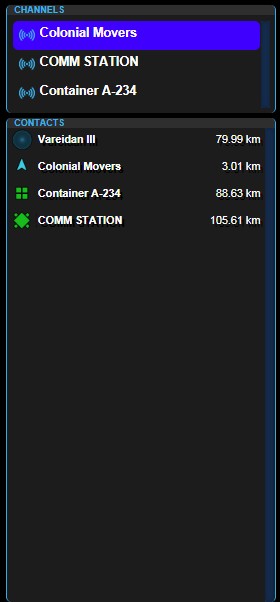
The Channels and Contacts panel on the upper left side of the Communications Officers Console shows both OPEN communication channels and a list of contacts that communication MAY be possible with.
Press a contact in the list that you wish to communicate with. If they are able to communicate, a CHANNEL will open between you and that contact.
Once a channel is open, use the Comms Quick-box to enter the communication you wish to send (see below).
Quick-Comms selection Box
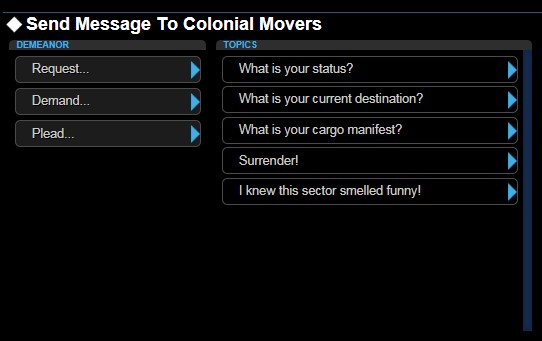
Using this panel, you can send messages without actually having to type in a message.
You have 3 DEMEANOR’S to use in this process. Request, Demand, Plead. By selecting one of these (Request is default), you can change the topic selection.
Once Demeanor is set, select from the list, the message you want to send to the selected OPEN channel. Your message AND any response will be shown in the MAIN COMMS Window (below)
Main Comms Window
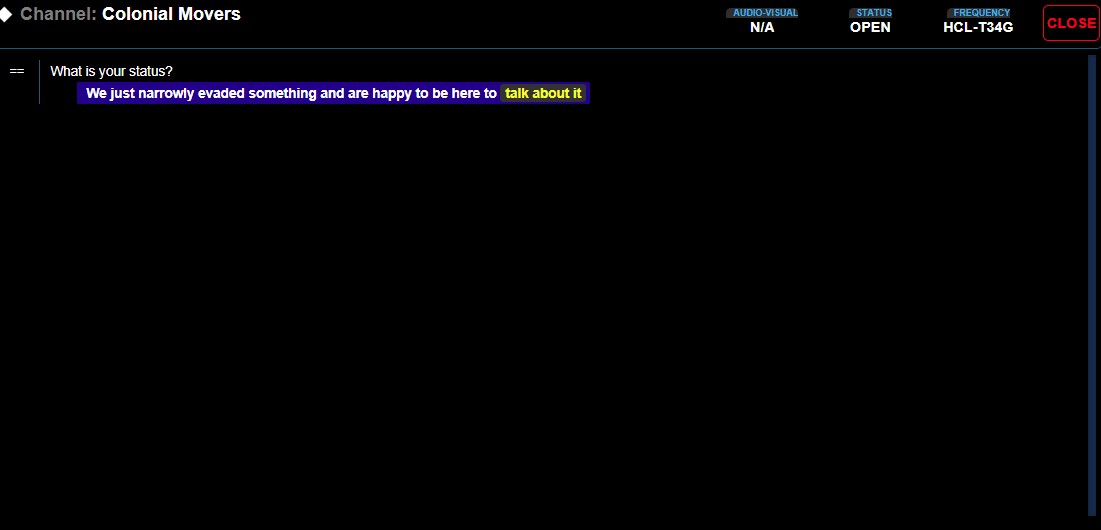
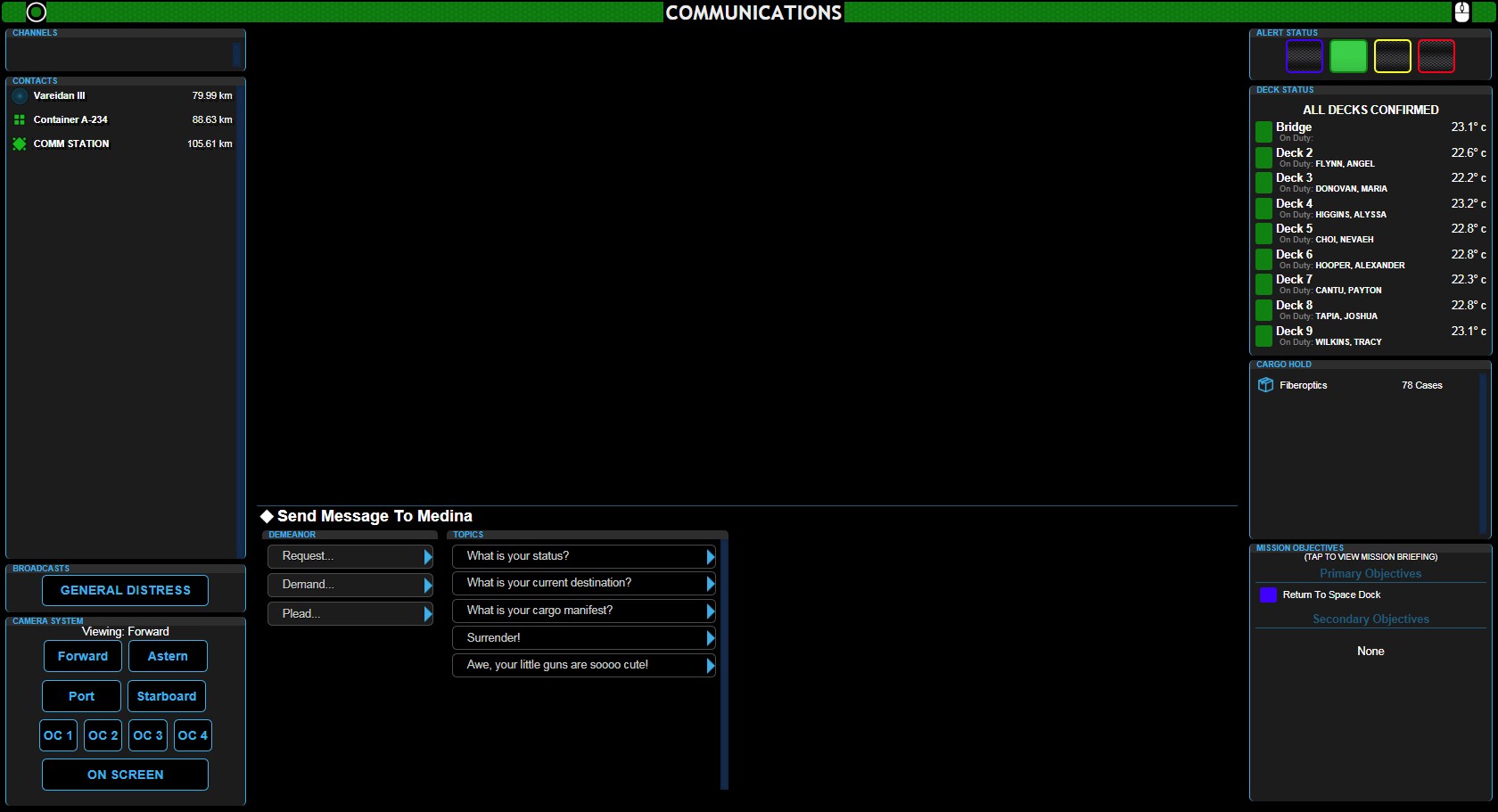
The Top-Center window of the Communications Console Station screen is the Main Comms Window. This window shows the various communications with the various targets you’ve interacted with.
Within the text, look for any highlighted 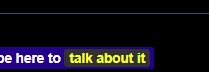 text within the message. This highlighted text shows that there’s something more to talk about with this contact. Press the highlighted text and a new message should show up.
Ship Alert Status Selector
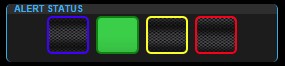
This panel in the upper right of the Communications Console Station screen both shows the CURRENT ship alert status, but also SETS the ship alert status. Only the Communications officer and the Captain have access to this function.
Main-Screen Camera Angle Selection
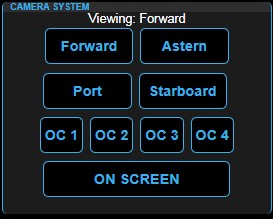
This panel allows the Communications Officer select WHICH camera angle is shown on the Main Screen.
Only Flight and Tactical can change the Main Screen. They can both take their selected target and put it on main screen. They can also turn stop the display of their data if they choose.
Cargo Hold Manifest
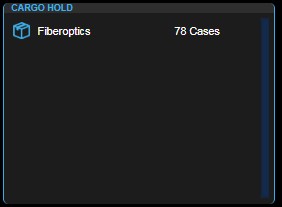
This panel shows the current cargo aboard the ship.
Mission Objectives List
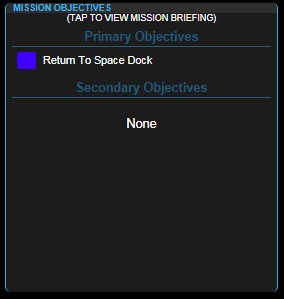
This panel, in the lower right side of the Communications Console Station Screen, shows the current mission objective(s). In some instances it will also show the completion progress (2/3 ‘two-of-three’ complete).
If you press on this panel itself, it will take you to a screen with the full-text of the MISSION BRIEFING